# Conexão manual - Windows

<audio class="audio-for-speech"></audio>

<div class="translate-tooltip-mtz translator-hidden" id="bkmrk-translator"><div class="header"><div class="header-controls">Translator</div><div class="header-controls">  
</div><div class="header-controls">  
</div></div><div class="translated-text"><div class="words">  
</div><div class="sentences">  
</div></div></div>Para **configurar** a rede Eduroam no Windows 8 acima, siga os seguintes passos:

Passo1

1. Clicar no botão "**Iniciar**";
2. Pesquisar por "*Wi-fi*" no campo de pesquisa;
3. Abrir as Configurações de *Wi-fi*;
4. Acessar "**Gerenciar redes conhecidas**";
5. Clicar em "**Remover a rede *eduroam***";

Passo 2

1. <span style="font-size: 10pt; font-family: Arial,sans-serif; color: #000000; background-color: transparent; font-weight: 400; font-style: normal; font-variant: normal; text-decoration: none; vertical-align: baseline; white-space: pre-wrap;">Acesse o portal cat.eduroam.org pesquise por “</span><span style="font-size: 10pt; font-family: Arial,sans-serif; color: #000000; background-color: transparent; font-weight: bold; font-style: normal; font-variant: normal; text-decoration: none; vertical-align: baseline; white-space: pre-wrap;">UFVJM” </span><span style="font-size: 10pt; font-family: Arial,sans-serif; color: #000000; background-color: transparent; font-weight: 400; font-style: normal; font-variant: normal; text-decoration: none; vertical-align: baseline; white-space: pre-wrap;">ou, caso o manual estiver online, clique no link abaixo: </span><span style="font-size: 10pt; font-family: Arial,sans-serif; color: #1155cc; background-color: transparent; font-weight: 400; font-style: normal; font-variant: normal; text-decoration: none; vertical-align: baseline; white-space: pre-wrap;">https://cat.eduroam.org/?idp=6172&amp;profile=9208</span><span style="font-size: 10pt; font-family: Arial,sans-serif; color: #000000; background-color: transparent; font-weight: 400; font-style: normal; font-variant: normal; text-decoration: none; vertical-align: baseline; white-space: pre-wrap;">. </span>
    1. <span style="font-size: 10pt; font-family: Arial,sans-serif; color: #000000; background-color: transparent; font-weight: 400; font-style: normal; font-variant: normal; text-decoration: none; vertical-align: baseline; white-space: pre-wrap;">Depois de baixar o aplicativo, </span><span style="font-size: 10pt; font-family: Arial,sans-serif; color: #000000; background-color: transparent; font-weight: bold; font-style: normal; font-variant: normal; text-decoration: none; vertical-align: baseline; white-space: pre-wrap;">instale-o </span><span style="font-size: 10pt; font-family: Arial,sans-serif; color: #000000; background-color: transparent; font-weight: 400; font-style: normal; font-variant: normal; text-decoration: none; vertical-align: baseline; white-space: pre-wrap;">e siga as instruções do aplicativo. </span>
2. <span style="font-size: 10pt; font-family: Arial,sans-serif; color: #000000; background-color: transparent; font-weight: 400; font-style: normal; font-variant: normal; text-decoration: none; vertical-align: baseline; white-space: pre-wrap;">Em seguida, clique em Iniciar e pesquise por “</span><span style="font-size: 10pt; font-family: Arial,sans-serif; color: #000000; background-color: transparent; font-weight: bold; font-style: normal; font-variant: normal; text-decoration: none; vertical-align: baseline; white-space: pre-wrap;">Painel” </span><span style="font-size: 10pt; font-family: Arial,sans-serif; color: #000000; background-color: transparent; font-weight: 400; font-style: normal; font-variant: normal; text-decoration: none; vertical-align: baseline; white-space: pre-wrap;">e clique em </span><span style="font-size: 11pt; font-family: Arial,sans-serif; color: #000000; background-color: transparent; font-weight: 400; font-style: normal; font-variant: normal; text-decoration: none; vertical-align: baseline; white-space: pre-wrap;">“</span><span style="font-size: 12pt; font-family: Arial,sans-serif; color: #000000; background-color: transparent; font-weight: bold; font-style: normal; font-variant: normal; text-decoration: underline; -webkit-text-decoration-skip: none; text-decoration-skip-ink: none; vertical-align: baseline; white-space: pre-wrap;">Painel de Controle</span><span style="font-size: 11pt; font-family: Arial,sans-serif; color: #000000; background-color: transparent; font-weight: bold; font-style: normal; font-variant: normal; text-decoration: underline; -webkit-text-decoration-skip: none; text-decoration-skip-ink: none; vertical-align: baseline; white-space: pre-wrap;">”</span><span style="font-size: 11pt; font-family: Arial,sans-serif; color: #000000; background-color: transparent; font-weight: bold; font-style: normal; font-variant: normal; text-decoration: none; vertical-align: baseline; white-space: pre-wrap;">. </span>
3. <span style="font-size: 10pt; font-family: Arial,sans-serif; color: #000000; background-color: transparent; font-weight: 400; font-style: normal; font-variant: normal; text-decoration: none; vertical-align: baseline; white-space: pre-wrap;">Abra “</span><span style="font-size: 10pt; font-family: Arial,sans-serif; color: #000000; background-color: transparent; font-weight: bold; font-style: normal; font-variant: normal; text-decoration: none; vertical-align: baseline; white-space: pre-wrap;">Central de redes de compartilhamento</span><span style="font-size: 10pt; font-family: Arial,sans-serif; color: #000000; background-color: transparent; font-weight: 400; font-style: normal; font-variant: normal; text-decoration: none; vertical-align: baseline; white-space: pre-wrap;">”</span><span id="bkmrk--1" style="font-size: 10pt; font-family: Arial,sans-serif; color: #000000; background-color: transparent; font-weight: 400; font-style: normal; font-variant: normal; text-decoration: none; vertical-align: baseline; white-space: pre-wrap;"><span style="border: none; display: inline-block; overflow: hidden; width: 153px; height: 50px;">![](https://lh7-us.googleusercontent.com/Hw81CicpZvICVWamrvCCQeX8cfYlQp6Q-QlotR9Qt4LuH5vQ4D9NJ2PrrqzIOeucX1CU3JDejLXoM9VcPDHt_uiqGH0spWqB0f_w1twB86nbOmjGRNIUcVP70KqEbYa-Ba0g1g_gGA7WQmxETvovWTo)</span></span>
4. <span style="font-size: 10pt; font-family: Arial,sans-serif; color: #000000; background-color: transparent; font-weight: 400; font-style: normal; font-variant: normal; text-decoration: none; vertical-align: baseline; white-space: pre-wrap;">4. Configurar uma nova conexão ou rede</span>
5. <span style="font-size: 10pt; font-family: Arial,sans-serif; color: #000000; background-color: transparent; font-weight: 400; font-style: normal; font-variant: normal; text-decoration: none; vertical-align: baseline; white-space: pre-wrap;">f</span>
6. <span style="font-size: 10pt; font-family: Arial,sans-serif; color: #000000; background-color: transparent; font-weight: 400; font-style: normal; font-variant: normal; text-decoration: none; vertical-align: baseline; white-space: pre-wrap;">f</span>
7. <span style="font-size: 10pt; font-family: Arial,sans-serif; color: #000000; background-color: transparent; font-weight: 400; font-style: normal; font-variant: normal; text-decoration: none; vertical-align: baseline; white-space: pre-wrap;">f</span>
8. <span style="font-size: 10pt; font-family: Arial,sans-serif; color: #000000; background-color: transparent; font-weight: 400; font-style: normal; font-variant: normal; text-decoration: none; vertical-align: baseline; white-space: pre-wrap;">f</span>
9. <span style="font-size: 10pt; font-family: Arial,sans-serif; color: #000000; background-color: transparent; font-weight: 400; font-style: normal; font-variant: normal; text-decoration: none; vertical-align: baseline; white-space: pre-wrap;">f</span>

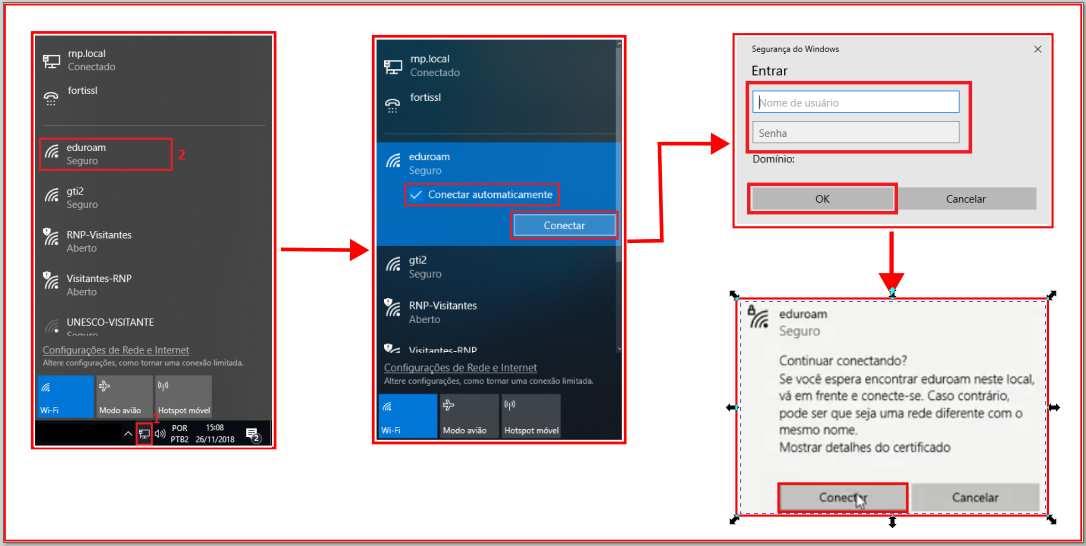
Para **acessar** a rede eduroam no Windows 10, seguir os passos a seguir:

Clicar no botão de **redes** e em seguida na conexão **eduroam**;

Clicar em "**Conectar automaticamente**" e em seguida em "**Conectar**";

Nome de usuário: ***login* institucional** (nome.sobrenome)

Senha: **senha institucional** (senha da rede CAFe)

Clicar em "**Ok**"

Clicar em "**Conectar**"

[![eduroam-windows.png](https://documentacao.ufvjm.edu.br/uploads/images/gallery/2022-07/scaled-1680-/hCFJzqooq3bNOIuO-eduroam-windows.png)](https://documentacao.ufvjm.edu.br/uploads/images/gallery/2022-07/hCFJzqooq3bNOIuO-eduroam-windows.png)